Circleback Email Integration: Sync Transcripts and Action Items
Connect Circleback to Slashy so transcripts, action items and participants land on the matching calendar event, ready for the follow-up you write next.

Dhruv Roongta
Aug 25, 2026 · 7 min read
Connect Circleback to Slashy from Settings, Integrations, Meeting Notes, and the transcript, action items and participants from each recorded call land on the matching calendar event, ready for the follow-up you write next. This guide covers the connection steps, what appears after a meeting, acting on action items without leaving Slashy, and troubleshooting.
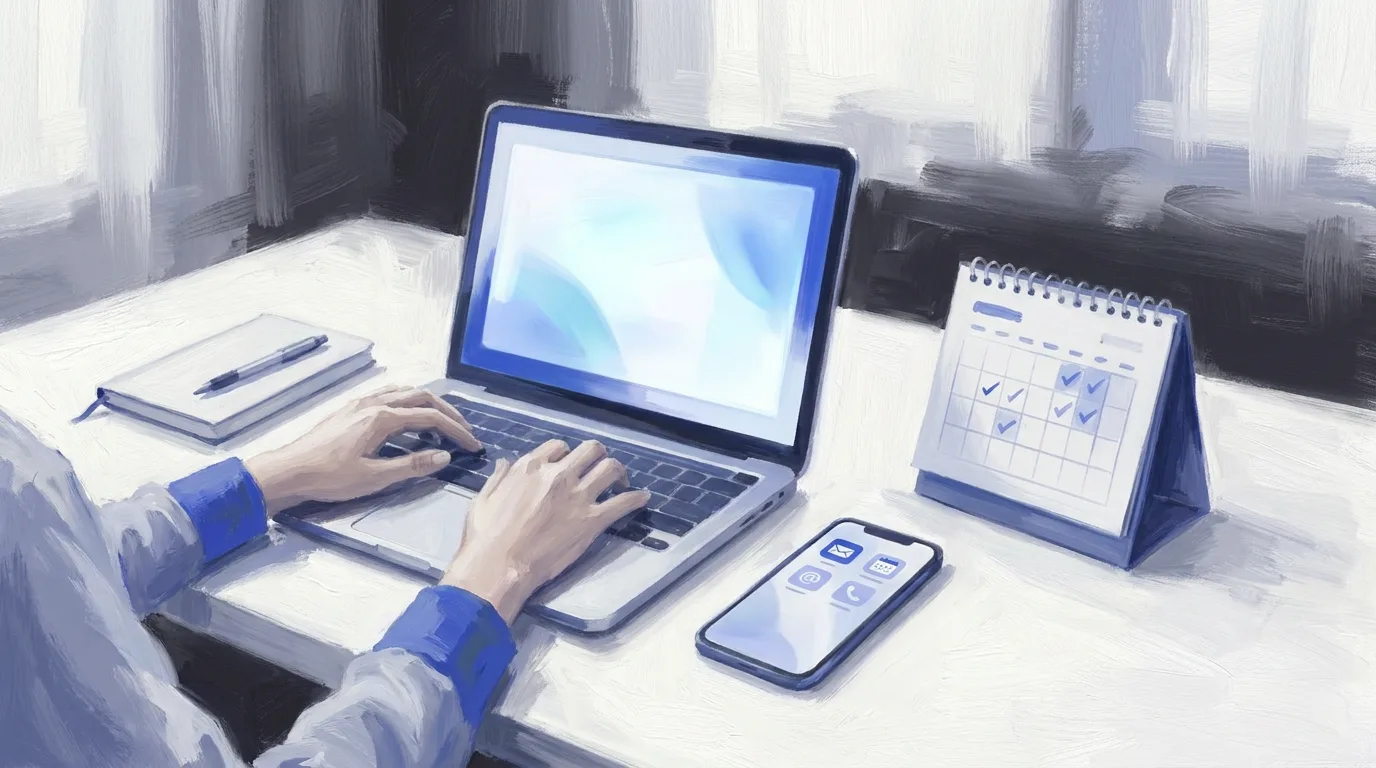
Founders spend most of their workday toggling between a video conferencing app and their inbox. You record a client call or a board meeting with Circleback, but everything worth acting on immediately vanishes into a separate dashboard. When it's time to follow up, you hunt through transcripts in one tab while drafting an email in another. That manual context-switching is a primary source of cognitive load for busy operators.
Setting up the CircleBack email integration with Slashy removes this friction. The full transcript, the action items Circleback extracted, and the participant list attach to the matching event on your calendar. You no longer need to remember what you promised during a call. The context sits right next to your email draft, so you can act with precision and speed.
Step 1: Open Slashy Settings and Navigate to the Circleback Integration
Founders often treat their inbox and their meeting recorder as two separate worlds. One holds the promises you made, and the other holds the delivery of those promises. Bridging this gap is the primary goal of the CircleBack email integration. To begin, press Cmd and comma to open Settings. Choose Integrations in the sidebar, then Meeting Notes, then click Circleback. The meeting-notes tools are grouped together there rather than mixed in with the rest of the integrations, so that is where to look.
The shape of this will be familiar if you have already set up the Attio email integration: one connection, made once, after which the context arrives on its own. The difference is what it carries. Attio brings the deal record; Circleback brings what was actually said in the room.
Step 2: Connect Your Circleback Account
Click Connect Circleback and sign in with the Circleback account that records your meetings. Use the right one here: if your team records under a shared or separate account, signing in with your personal one will connect an empty history.
Security is non-negotiable for executives managing sensitive company information. Slashy is SOC 2 Type II and CASA Tier 2 certified. Your meeting data is encrypted using TLS 1.2+ during transit and AES-256 encryption at rest. Slashy does not use your meeting transcripts to train global AI models. The integration only informs your local memory system, which helps the app learn your specific voice and the context of each recipient relationship.
Step 3: Confirm the Integration Is Active
Once Circleback confirms access you are redirected back, and the integration page shows Connected. That is the whole setup. There is no manual sync to run after each meeting.
Matching is by time. Slashy pairs a Circleback meeting to a calendar event when both exist at similar times in your calendar, and the match is reliable when the event was already on your calendar before the meeting started and Circleback recorded against it. That is worth knowing up front, because it means the habit that makes this work is booking the call as a calendar event first rather than spinning up an ad hoc room. Keeping that discipline is the same reason turning email into calendar events is worth automating.
Step 4: What Appears on Each Calendar Event After a Meeting
Open any past meeting that Circleback recorded and you will find a Circleback section in the event detail panel. It expands to show the transcript and action items inline. Three things arrive on the event, and this is the complete list: the full transcript, the action items Circleback extracted from the conversation, and the participant list with names and any roles Circleback identified.
One property of this connection is worth stating plainly, because it shapes how you use it. Slashy reads from Circleback and never writes to it. Edits you make to an event in Slashy do not change anything on the Circleback side. That is a deliberate design choice rather than a gap: Circleback stays the record of what was said, and Slashy is where you act on it.
Notes typically appear shortly after the meeting ends, once Circleback has finished processing the recording. If a transcript has not shown up yet for a call that just wrapped, reload the calendar.
Slashy prepares meetings, shares your availability, and coordinates the next time without another round of messages.
Step 5: Act on Action Items Without Leaving Slashy
Action items are the part most likely to get lost, and they arrive as a checklist inside the event panel rather than as prose you have to re-read. Tick them off as you finish them, or hand one to the agent to turn into a reminder, a follow-up email, or a new event. The commitment you made out loud becomes something with a state, instead of a line buried in a transcript.
You can also ask about a call rather than scroll it. Press Cmd and slash and ask the agent something like "What did we agree with Acme last week?". It searches your connected meeting notes and replies with an inline card showing the meeting, the date, the participants and a link to the recording. Writing the follow-up that earns a reply is a different job when the specifics are one question away.
When you start a new email to a participant from that meeting, the AI drafting engine sees these action items. It suggests a draft that opens from what you actually committed to rather than from a blank page. Booking the next step runs through the same context, so the follow-up and the meeting it came from stay attached. The memory system learns from these interactions and builds a per-recipient history that includes both your verbal promises and your written replies.
Troubleshooting: If Transcripts or Action Items Are Missing
If a meeting has not appeared on its event, first check that Circleback actually finished processing the recording. Nothing syncs until that completes on their side, and notes typically land shortly after the meeting ends. Reload the calendar before assuming something is broken.
The most common cause is a recording with no calendar invite behind it. When that happens Slashy keeps the Circleback record but does not attach it to an event, and you can associate it by hand from the dropdown in the Circleback section once the right event exists. If a recording landed on the wrong meeting, the same dropdown is where you move it.
One thing to know before you disconnect, because it differs from some other meeting-notes integrations. Open Settings, then Integrations, then Meeting Notes, then Circleback, and click Disconnect, and Slashy stops pulling new meetings AND removes the existing Circleback data from your events. Your data inside Circleback itself is untouched, but the copy on your calendar goes with the connection. Teams running a CRM alongside this, such as the HubSpot Gmail integration, should keep that in mind when deciding where the durable record lives.
Conclusion
Connecting your meeting recordings to your inbox is the fastest way to reclaim hours of your work week. Manual logging is a task for machines, not for founders. The CircleBack email integration with Slashy ensures that every insight from your verbal conversations is instantly available when you sit down to write an email. That visibility lets you lead with context rather than generic templates.
The setup is one connection under Settings, Integrations, Meeting Notes, and after that the transcript, the action items and the participants are on the event before you start writing. Slashy starts with 7 days of full access if you want to see what that changes about your follow-up speed.
Visit Slashy
AI-native email and calendar client for founders and operators.
Sources
Frequently asked questions
Have more questions? Visit our Help Center.
Related reading
- Meeting Notes Email Integration: Granola vs Fathom vs Circleback
- Granola Email Integration: Turn Meeting Notes Into Follow-Ups
- Fathom Email Integration: Put Call Recordings on Your Calendar
Connect Gmail or Outlook and see Slashy with your own email.
Clockwise Shutdown 2026: Salesforce Deal, Alternatives
Clockwise shut down on March 27, 2026 when Salesforce hired its team. Here is what happened to your Focus Time and scheduling links, and where to go next.

Meeting Notes Email Integration: Granola vs Fathom vs Circleback
Granola syncs meeting notes both ways but skips the transcript. Fathom, Circleback, Otter and Fireflies are read-only and carry the full record. Compared.

Fathom Email Integration: Put Call Recordings on Your Calendar
Connect Fathom to Slashy so the summary, transcript and action items from each recorded call attach to the matching calendar event before you write back.
Let your inbox do the follow through
Slashy drafts replies, tracks what is waiting, and keeps important conversations moving.